Create a secure Blockchain Identity
When you enter the Ucam app for the first time, a random Blockchain Identity (Ucam account) is created locally in your Ucam app, the Private Key you see is used to access the Blockchain Identity - That's your login!
What is Private Key? And Why does Ucam kill traditional email login?
Check the Private Key in the User tab -> Private Key. Write it down on a note and keep it safe. We have prepared 2 Recovery Sheets in the Ucam box for you to record the private key. DO NOT SHARE THE YOUR PRIVATE KEY WITH ANYONE!

Please note
- You can always create a new Blockchain Identity by tapping Logout at the top right corner of the User tab. After you log out, a new pair of Blockchain Identity and private key will be generated automatically. Make sure you have backup the Private Key before you logout.
- One camera can be added to ONLY one Blockchain Identity (Ucam account). Make sure to delete your camera first before you switch your account / abandon the current Private Key. In case you lost the private key, set up a De-registration Email here to un-link the camera later.
- Only you own the private key - that means no one is able to recover it, nor the camera data in the Blockchain Identity (Ucam account) if you lost the private key.
Login your Blockchain Identity
Login with Private Key
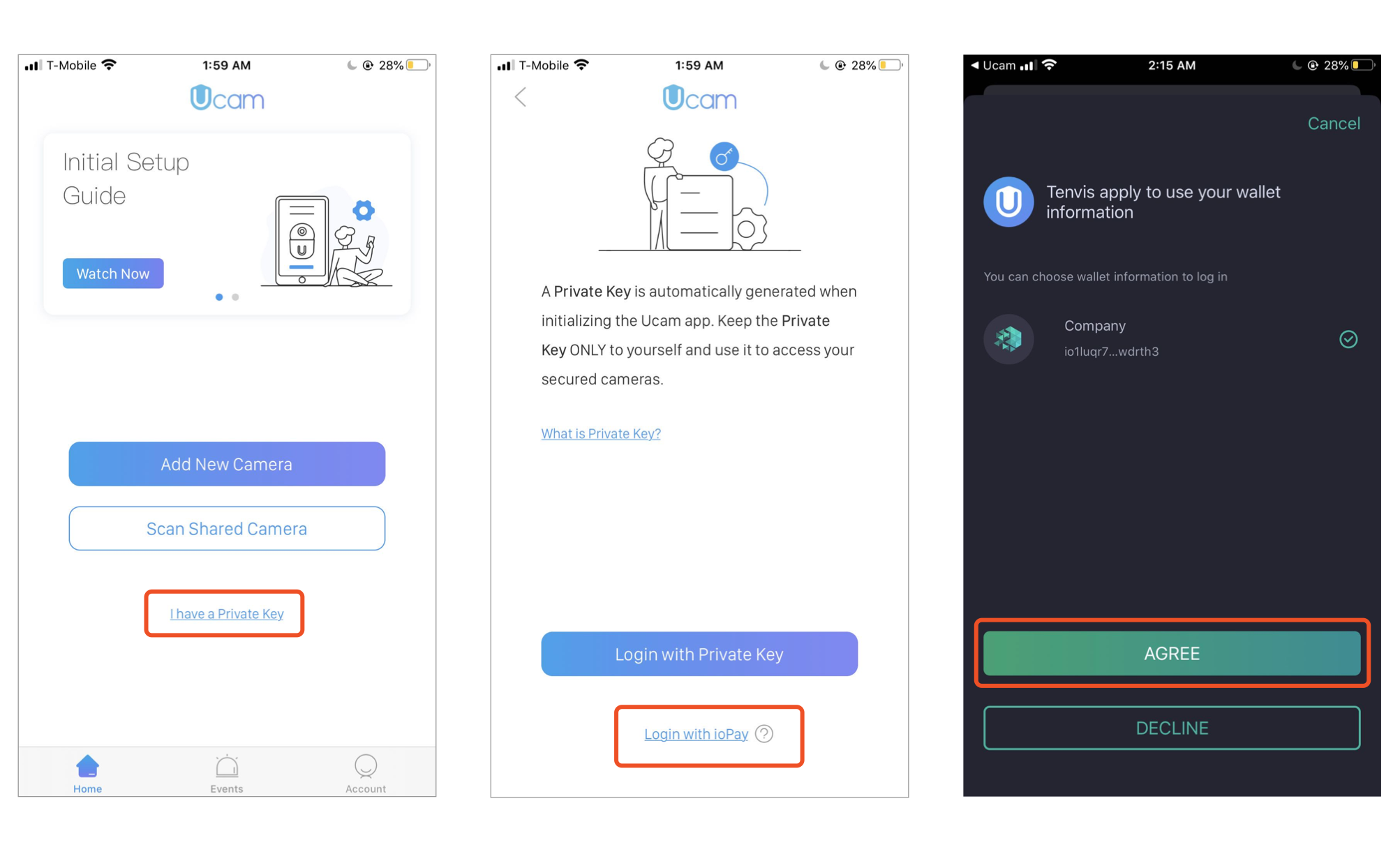
If you want to use a specific Private Key rather than the pre-set one which was auto-generated by the Ucam app. Select I have a Private Key -> Login with Private Key. Enter your key to finish the login process.

Login with ioPay
ioPay is a blockchain-based wallet to securely manage private keys and digital assets. If you have ioPay on your phone/tablet and created a wallet already, select Login with ioPay, then you will be redirected to ioPay. Give access to the Ucam app to finish the login process.
All the Private Keys are stored locally on the user's phone/tablet. We do not own/store any keys. Please double check you have backup the Private Key.