Events will be triggered by motion or sound detection by Ucam and you will be notified if you turn on the notification. All the Event Recording videos can be stored in Encrypted Cloud Storage. When Ucam detects any motion, it will start to record a short video and save it to Ucam's Encrypted Cloud Storage. You can view all the events on the Homepage -> Event tab. Each Event Video is 10 seconds long and can be viewed for up to 3 hours by default in the free plan. You can upgrade it to 30 seconds with a longer event video history by purchasing advanced plans.
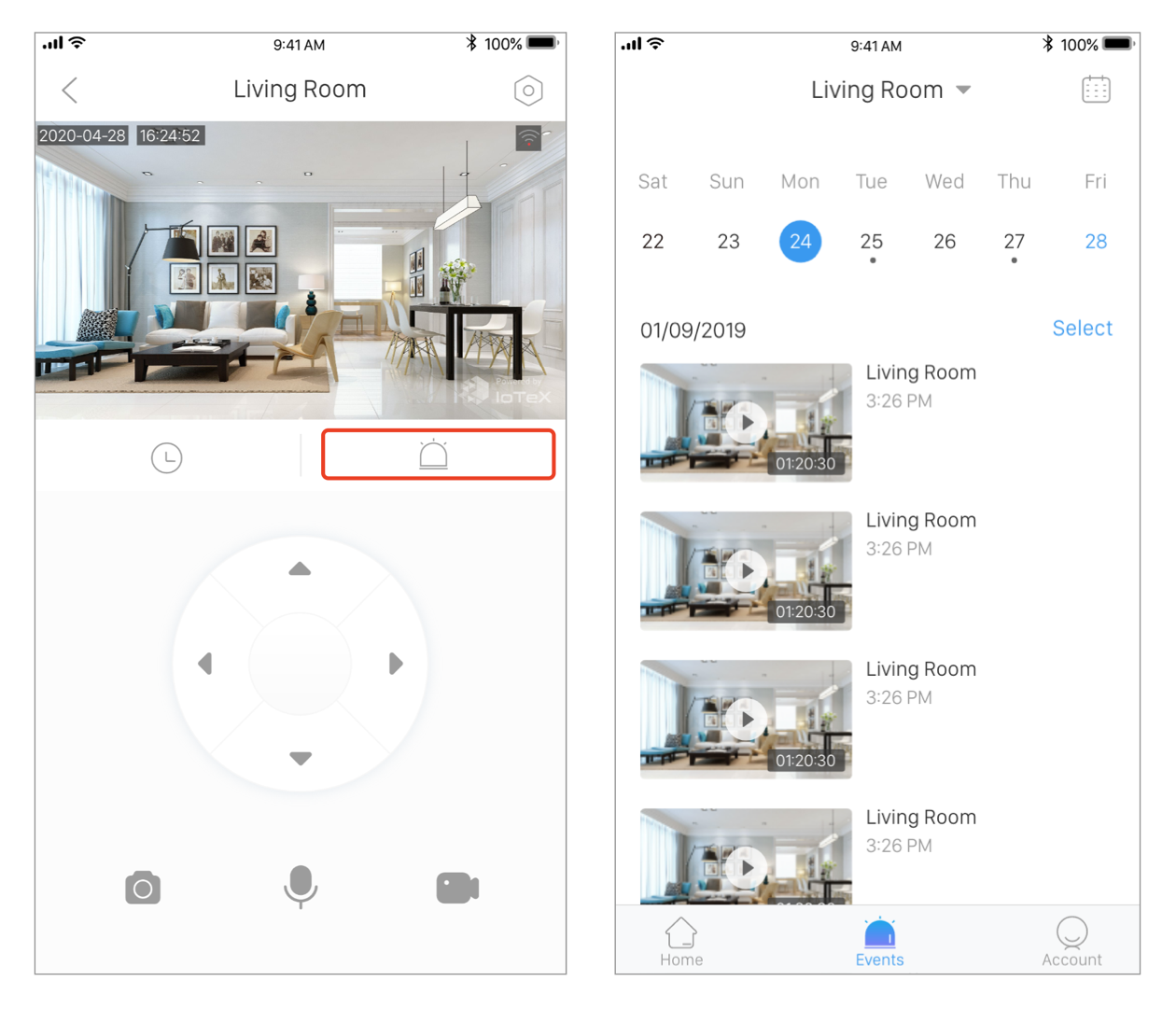
Check Event Recording Videos
Go to Camera Live View -> click the Event Recording button, you will be able to view/manage the event recording videos stored in the encrypted cloud storage.
Event Recording (Motion Detection) Schedule
Go to Camera Settings -> Event Recording -> Motion Detection Schedule, you can choose from
- Off: Disable the Motion Detection feature. The camera will not capture any event even there is a motion/sound.
- All Day: Enable Motion Detection feature 24/7, from 00:00 to 24:00. Any events detected by the camera will be captured and saved as you wish.
- Custom: Enable Motion Detection feature during a certain period of time and choose to repeat it on a weekly basis or not. By tapping the Tap to add a new schedule, you can choose the start & end time and set up multiple time periods as needed. For example, 2:00 PM -> 5:30 PM, repeat on every Sunday. 8:00 PM -> 11:00 PM, no repeat.