Follow the video and article below to set up your Ucam by connecting with Ethernet cable.
Step 1. Open Ucam App
Download the Ucam app in Apple Store (iOS) or Google Play (Android). Select Add New Camera to continue.


Step 2. Plugin the Camera
It will take a few seconds to activate the camera. Wait until you hear the voice prompt “Welcome to Ucam”. Select I heard ‘"Welcome to Ucam" and then select Try wire connection method.
If you failed to hear the correct voice, press the reset button for approximately 10 seconds and try again.
Step 3. Connect Cable
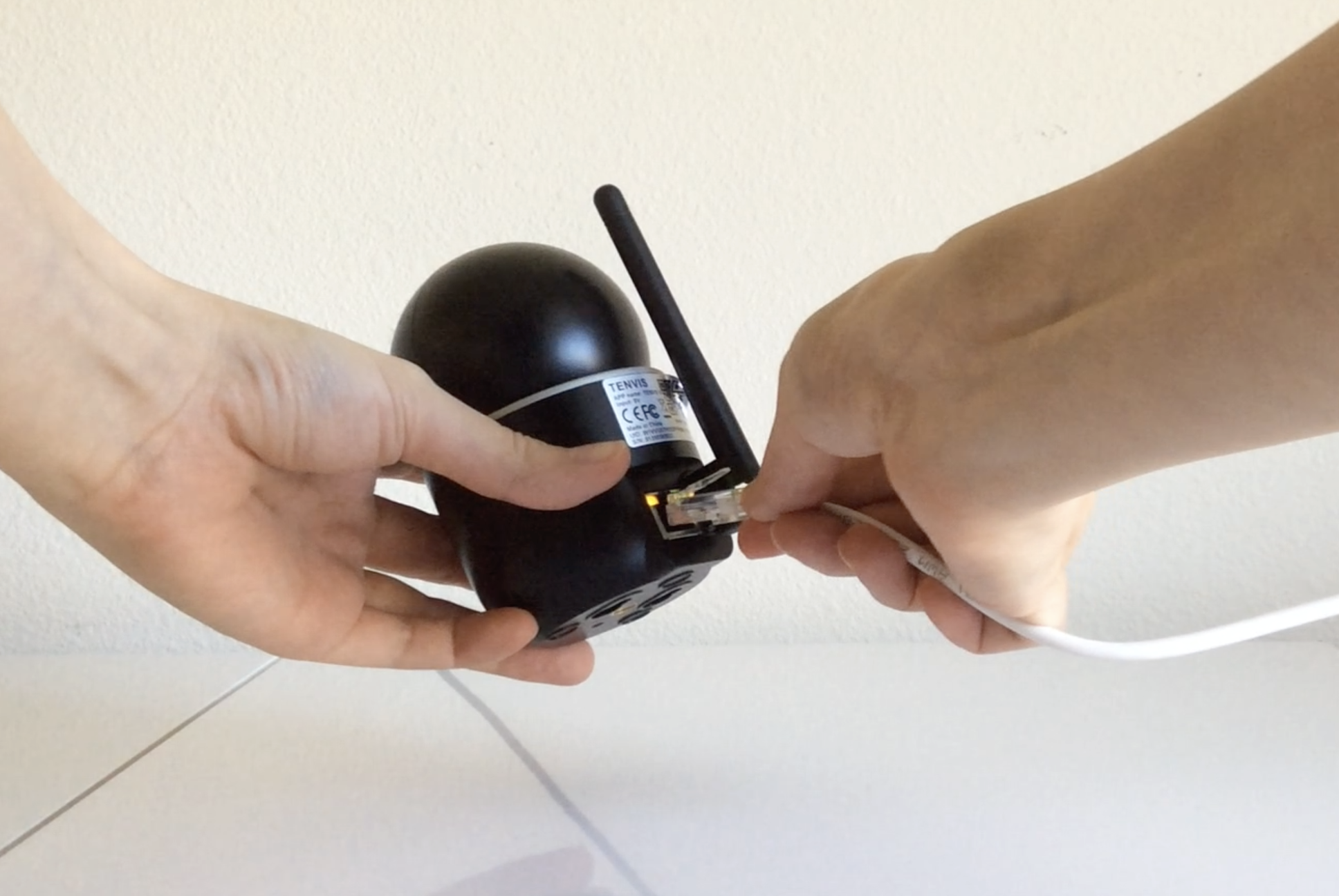
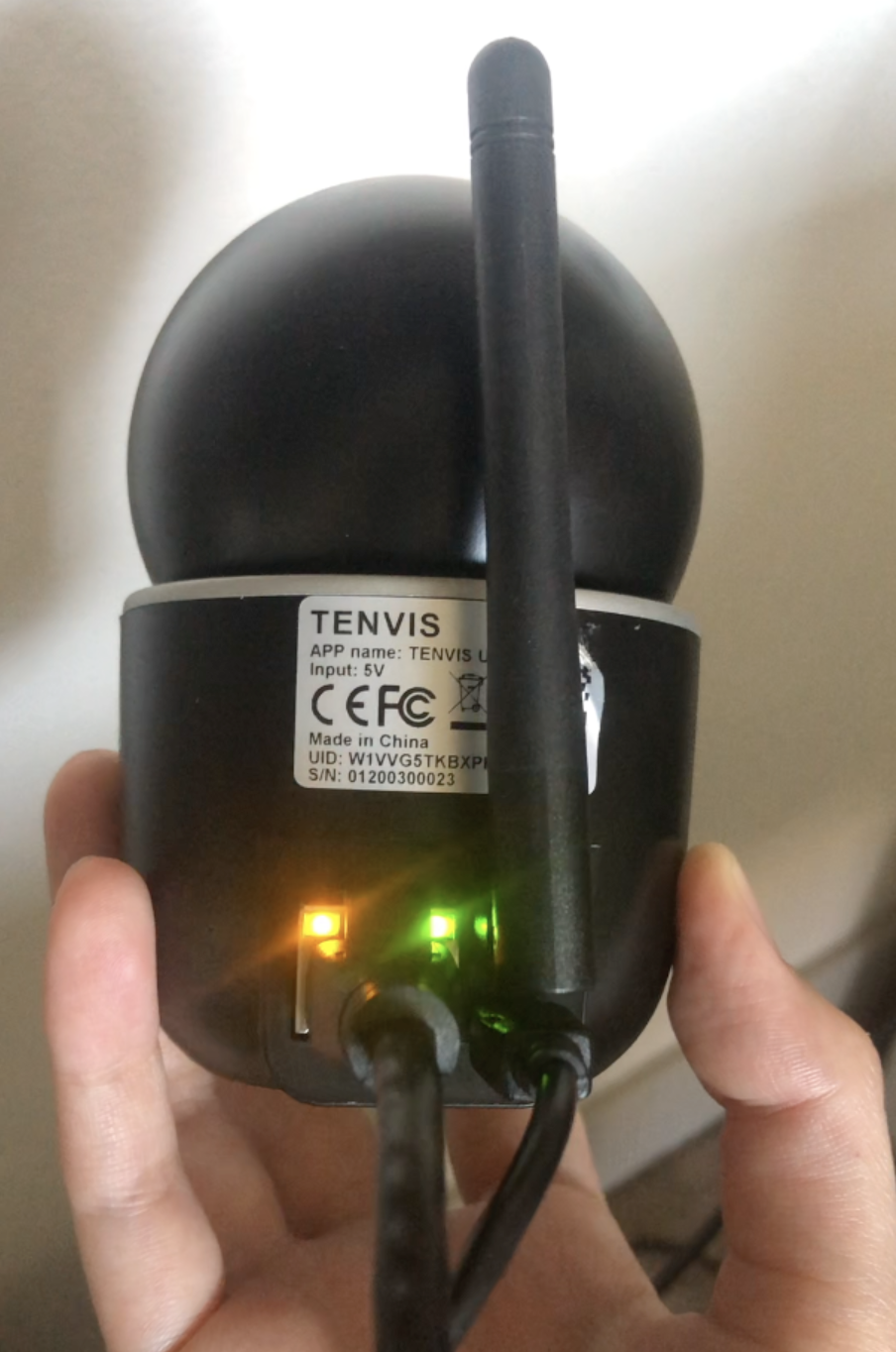
Make sure your phone/tablet is connecting to the same network with the Ethernet Cable. Continue when the yellow light starts to blink.
Step 4. Select Camera
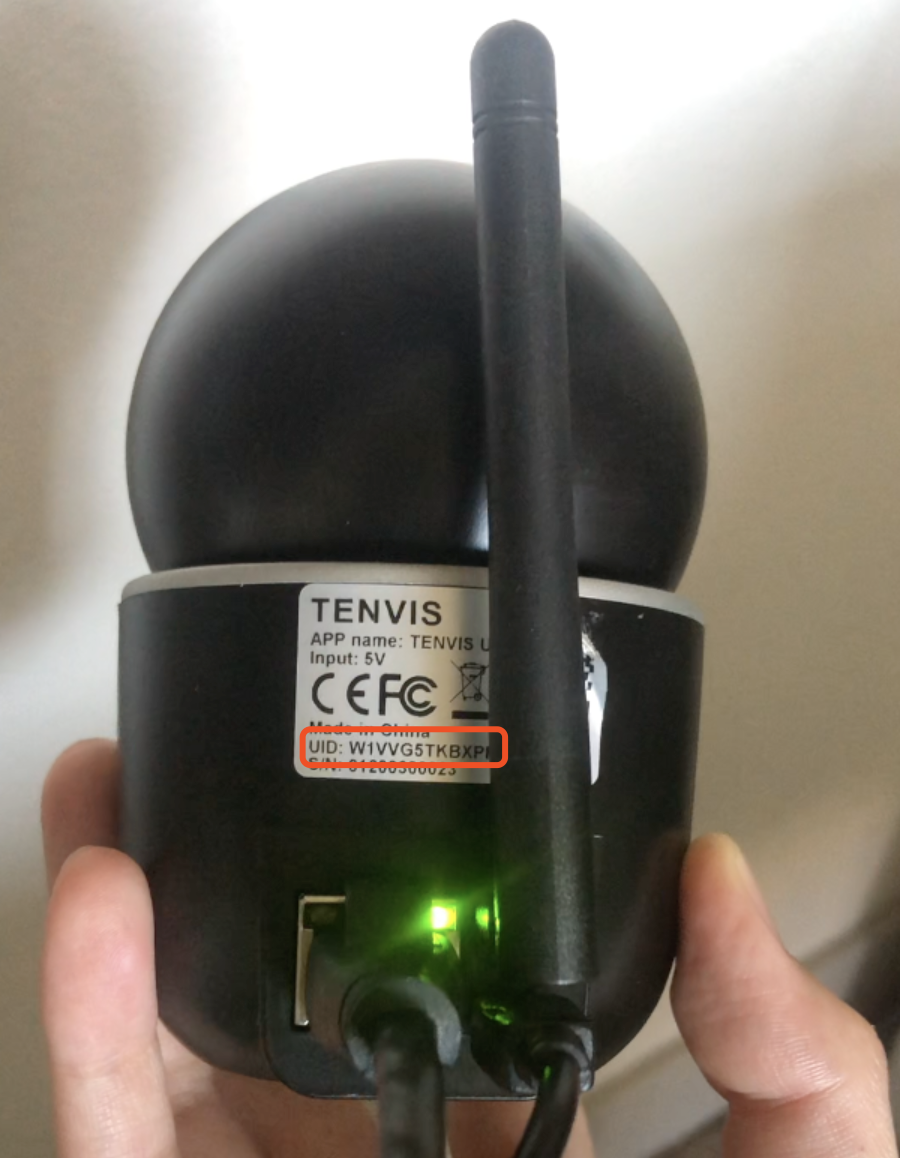
Select the camera you want to add. Find the UID of the camera on Ucam’s sticker.
Waiting to Connect
It may take less than 60 seconds to find and connect the camera. Please wait patiently.
If you stopped the process or encountered any problem halfway. Please reset the camera before you add it again.
Step 5. Name Your Camera
Give your camera a nickname and then click Finish Setup. You can always change it in Camera Settings. The person who you share the camera with will be able to see the camera name.
Turn on Privacy Mode
At the last step, just give Ucam a few more seconds to
- create Blockchain Identity
- generate Private Key
- prepare to encrypt
- turn on Privacy Mode
to give you peace of mind about your camera information.
You Are All Set!
You can add the camera using two more methods:
If you need any help, please contact us at support@getucam.com.